
CC-Switch Quick Configuration Tool
All-in-One AI CLI manager — desktop application
🔗 Related links
| Resource | URL |
|---|---|
| GitHub Releases | cc-switch/releases |
| CC-Switch docs site | ccswitch.lovable.app |
🎯 About the tool
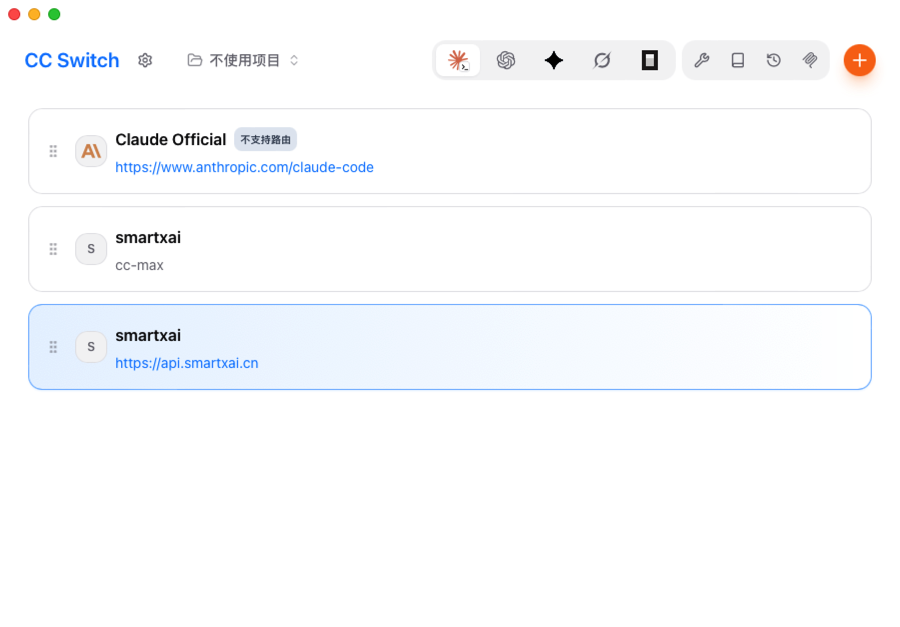
CC-Switch is a cross-platform desktop application that provides unified management for Claude Code, Codex, and Gemini CLI. Through an intuitive GUI, it handles configuration switching, MCP server management, system prompts, and Claude Skills management.
💡 Key features
• One-click switching between provider configurations for different AI tools • API endpoint speed tests with quality indicators • Multi-preset system prompt management • Unified architecture for managing MCP servers • Claude Skills discovery and installation system • Configuration backup/restore (last 10 automatically retained) • Deep link protocol support (ccswitch://) • Environment variable conflict detection
📦 Installation
🖥️ Windows
Option 1: MSI installer (recommended)
- Open the project releases page: https://github.com/farion1231/cc-switch/releases
- Download the latest
.msiinstaller - Run the installer and follow the wizard
- Launch CC-Switch from the Start menu after installation
Option 2: Portable version (no installation)
- Download the
.zipportable archive - Extract it to any directory
- Run
cc-switch.exeto start using it
🍏 macOS
Recommended: install via Homebrew
# Add the tap
brew tap farion1231/ccswitch

# Install cc-switch
brew install --cask cc-switchManual installation
- Open the Releases page
- Download the
.dmgpackage - Open the DMG and drag CC-Switch into the Applications folder
- Launch it from Launchpad or the Applications folder
🐧 Linux
Debian/Ubuntu family (recommended)
sudo dpkg -i cc-switch_*.deb
sudo apt-get install -f # Fix dependenciesUniversal AppImage
chmod +x cc-switch_*.AppImage
./cc-switch_*.AppImageArch Linux (AUR)
paru -S cc-switch-bin
# or with yay
yay -S cc-switch-bin🚀 Quick start
Step 1: Initial setup
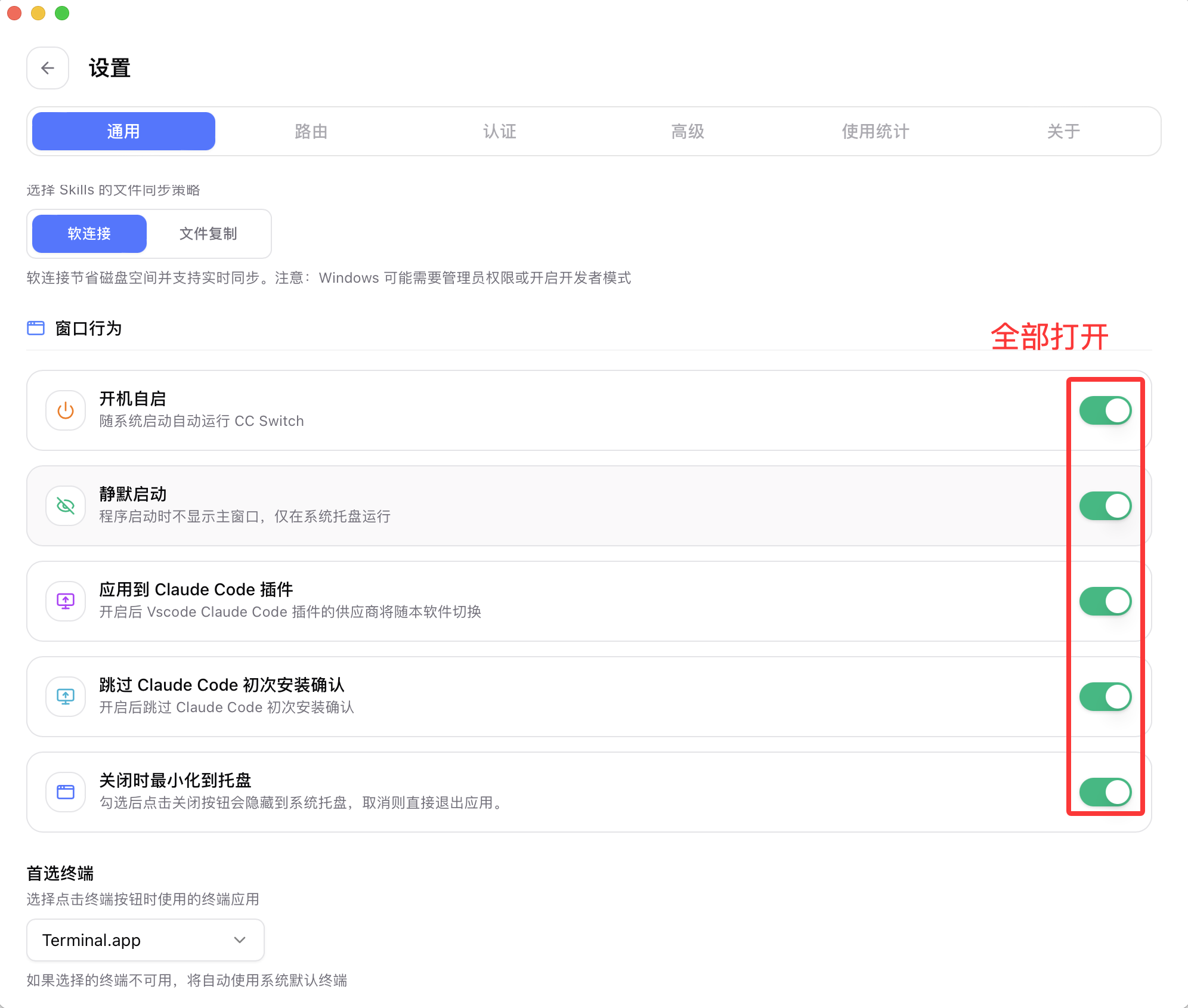
Open CC-Switch, go to the Settings page, and under the General tab turn on every switch in the Window Behavior section. This ensures auto-start, Claude Code plugin integration, minimize-to-tray, and other features work properly.
💡 Recommended configuration
Enable every switch in Window Behavior for the best experience: launch at startup, silent start, apply to the Claude Code plugin, skip first-run install confirmation, and minimize to tray on close.
Step 2: Add provider configurations
- Click the plus button in the top-right to add a provider (Claude/Gemini)
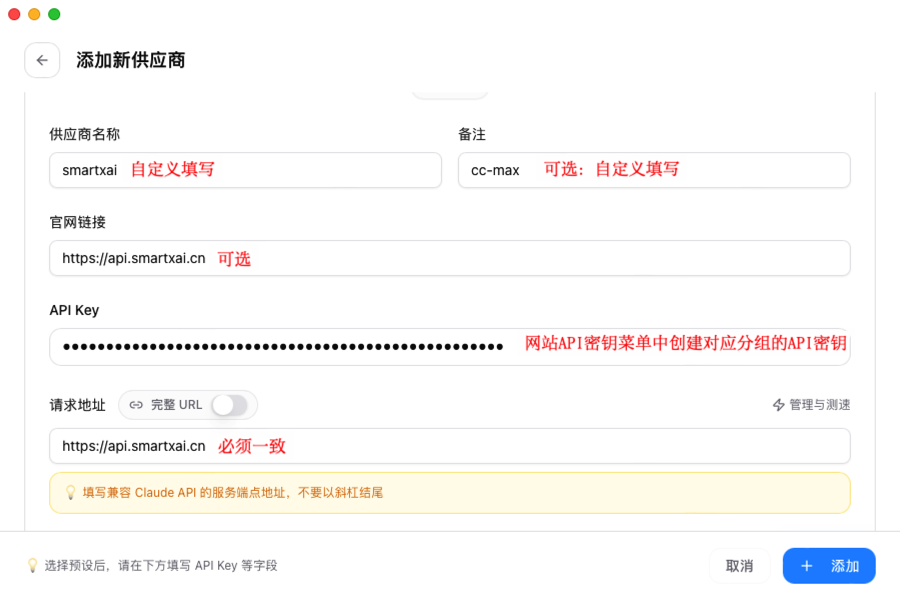 💡 Use an API Key with access to the selected model.
 - Click the plus button in the top-right to add a provider (Codex)
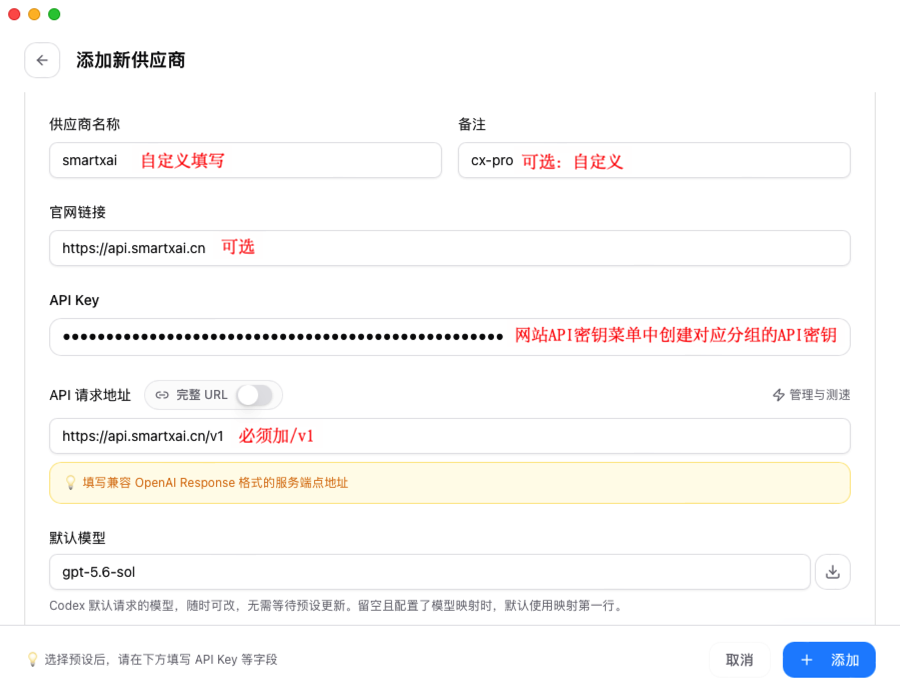
- Click "Save" to finish
⚠️ Important
Different AI tools require compatible protocols, model IDs, and token permissions. Check the console before creating or selecting an API Key.
Step 3: Switch providers
- Pick the configuration you want to use from the provider list
- Click "Enable"
- Or use the system tray icon for instant switching
Quick switching from the system tray:
- Right-click the CC-Switch icon in the system tray
- Choose the provider you want from the menu
- The change takes effect immediately (Claude Code supports hot reload; other tools may need a restart)
Step 4: Apply the configuration
After switching, close and relaunch the corresponding AI tool — it will pick up the new configuration automatically.
📖 Full documentation
For more configuration details and advanced features, see the full CC-Switch documentation.
🔗 Project resources
- GitHub repo: https://github.com/farion1231/cc-switch
- Bug reports: GitHub Issues
- Latest releases: Releases page
🎉 Get started!
You can now manage configurations across multiple AI coding tools with ease using CC-Switch. Enjoy a more productive development workflow!